
Help center
Step-by-step guides for the app, Android Auto and the website.
Getting started
Create an account and sign inThe same account works in the app and on the website.
- 1Open the app and tap Create account.
- 2Enter your name, email and a password with at least 8 characters.
- 3Enter the 6-digit code sent to your email (check spam too).
- 4Done: use the same email and password at novexgo.com.br/entrar.
No code? Company email servers may quarantine it; try a personal email.
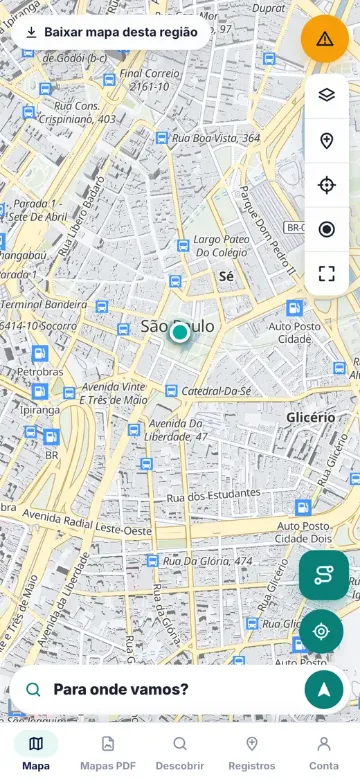
Download the map to use offlineBefore you go, download the region over Wi-Fi.
- 1Zoom the map to the area you'll visit.
- 2Tap Download map of this region.
- 3Wait until it finishes; the map is stored on your phone.
- 4Without signal, the street map, your position and track recording keep working.
Navigation
Plan a route and navigateSearch the destination, choose the vehicle and tap Start.
- 1Tap Where to? and type the destination.
- 2Choose car, truck, bike or walking.
- 3Check time, distance and how much is paved or dirt.
- 4Tap Start: voice guidance announces each turn.
Calculating a new route needs internet; once started, navigation keeps going without signal.
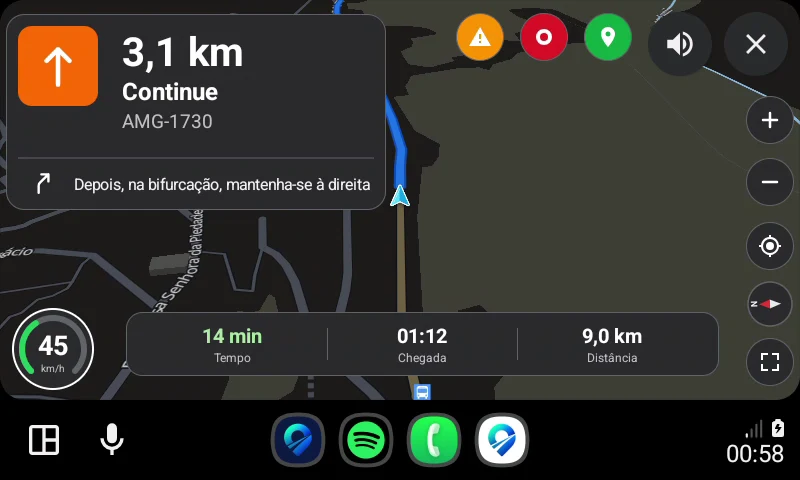
Use it on Android AutoConnect your phone to the car and open NovexGO on the car screen.
- 1Connect your phone to the car (cable or wireless).
- 2Open NovexGO on the car screen.
- 3Use the magnifier to search or the blue button to open a PDF map.
- 4The orange button reports what you see on the road; green marks a point; red records the track.
Road reportsPothole, crash, animal on the road: report it and help drivers behind you.
- 1Tap the orange button (app or car).
- 2Choose what you see.
- 3The report appears to other drivers, without your name.
- 4Drivers who pass later confirm whether it's still there.
Records
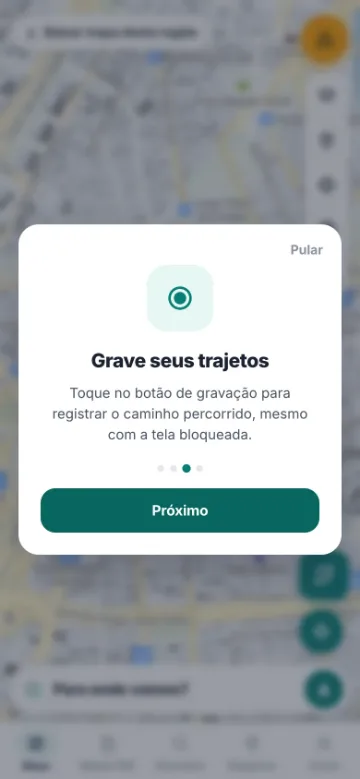
Record a trackWorks with the screen locked and without signal.
- 1Tap the record button.
- 2Follow your way as usual (you can lock the screen).
- 3Tap again to stop and give it a name.
- 4The track goes to Records and can be exported.
Mark points (gate, bridge, pest…)A point with name, photo, color, icon and layer.
- 1Tap the mark button (or use the crosshair to pick on the map).
- 2Choose the type: gate, bridge, mud, pest/disease and more.
- 3For pests, choose the crop and the pest from the list.
- 4Add a photo and description and save. Points stay in your account only.
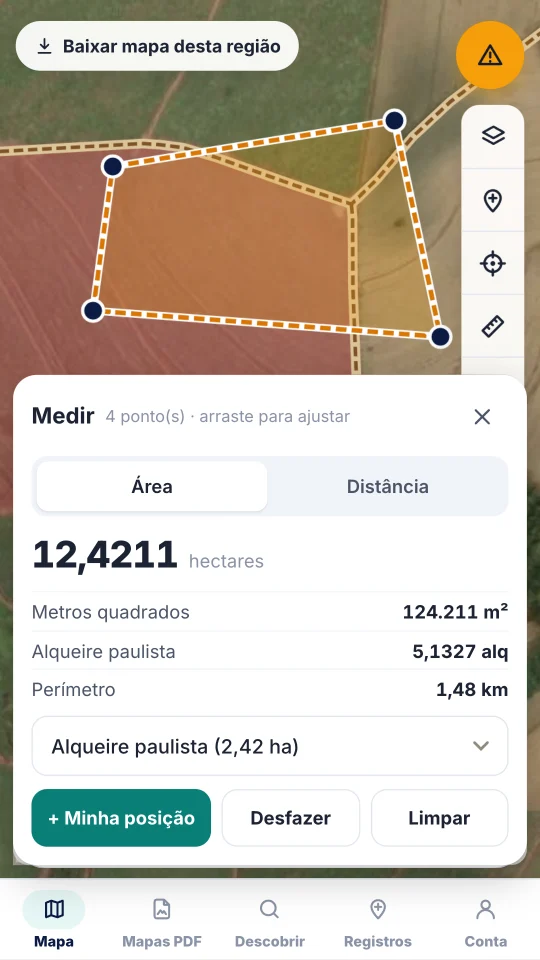
Measure area and distanceHectares, m², alqueires and perimeter.
- 1Tap the ruler on the map.
- 2Choose Area or Distance.
- 3Tap the corners (or use My position while walking the boundary).
- 4Drag a point to correct it; choose your region's alqueire.
Farm PDF mapsSee your position on top of a georeferenced PDF map.
- 1Open the PDF maps tab and tap Import.
- 2Choose the PDF (georeferenced, like Avenza or QGIS maps).
- 3Open the map: the blue dot shows where you are.
- 4In the car, use the blue PDF maps button.
Maps imported before version 1.0.3 show only the map frame: import them again to see the full page with the legend.
Backup and switching phonesYour records are stored in your account.
- 1Online, the app uploads your account backup.
- 2On the new phone, sign in with the same account.
- 3Your records come back automatically.
- 4On the website, My map shows everything in the backup.
Website
View and edit records on the websiteMy map, My records and export.
- 1Sign in at novexgo.com.br/entrar.
- 2In My map, search places, see coordinates (degrees and UTM) and open records.
- 3In My records, filter by type, layer and date, and edit several at once.
- 4In Export, download KML, KMZ, GPX or Shapefile.
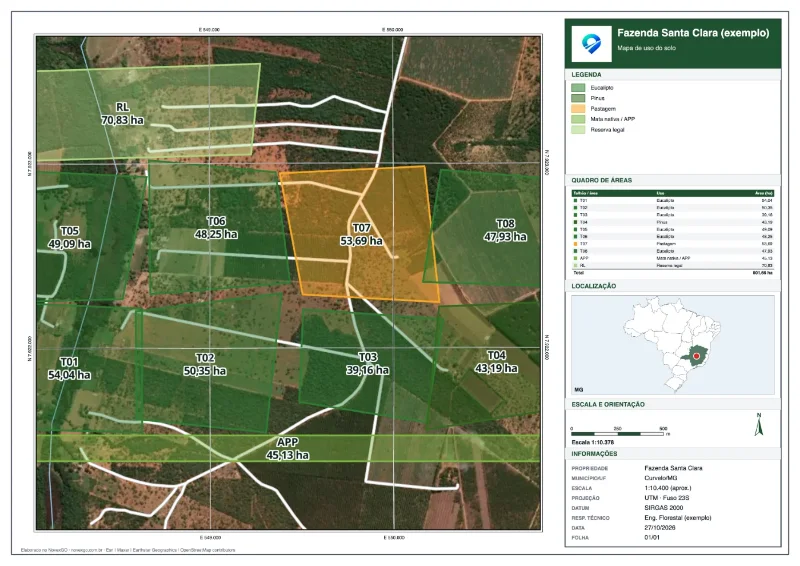
Create a forestry map (PDF)Sheet with stands, title block, legend and UTM grid.
- 1On the website, open My map → Create map.
- 2Draw stands on the map or import KML/KMZ/Shapefile.
- 3Choose paper and scale and fill in the title block.
- 4Download the georeferenced PDF or an atlas with one page per stand.
Account and privacy
Forgot or want to change the passwordIn the app or on the website.
- 1On the sign-in screen, tap Forgot password and follow the emailed code.
- 2Signed in: Account → Account security → Change password (app) or Settings → Security (website).
- 3After changing it, other devices ask you to sign in again.
Connected devices and changing emailSee where your account is open.
- 1On the website, open Settings.
- 2In Connected devices, disconnect a device or sign out of all others.
- 3In Change email, enter the new email and your password; confirm with the code sent to the new email.
Download or delete my dataYou own your data (Brazil's LGPD).
- 1On the website, Settings → My data → Download all my data: you get a .zip with everything.
- 2To delete, use Delete account (app or website). The account and backup are erased immediately.
- 3Privacy questions: privacidade@novexgo.com.br.
Contact support
Didn't find the answer? Write to us. If something is wrong, attach a screenshot.